Switching web agencies? Don't let your Google traffic fall off a cliff
Switching agencies or platforms can wipe out search traffic within days if the fundamentals don't carry over: URLs and redirects, titles and meta descriptions, indexing settings, sitemaps, and Search Console ownership. Your company should own Search Console, and someone should compare Performance to a baseline in the first week after launch.
Want to know where your own site stands?Get a quote
A site can look exactly the same after you change agencies and still disappear from Google.
The chart below is a real example. The business moved its site from Craft CMS to WordPress with a new agency. It was close to a pixel-for-pixel conversion: same design, same pages, nothing a visitor would notice. Within a day or two of the new site going live, search traffic fell to almost nothing. Four weeks later, it hasn’t come back.
Nobody set out to hurt the site. The owners made a decision they believed was right, and the new team rebuilt everything they could see. What got skipped were the fundamentals Google depends on, the parts of a site nobody looks at once it’s live.
This guide covers what that looks like, what a migration has to carry over, and the checklist we run before and after cutover. It applies whatever platform you’re moving from or to.
What a traffic cliff looks like in Search Console
In Search Console’s Performance report, healthy traffic wobbles day to day. A broken migration looks different: clicks and impressions drop nearly to zero around the same date, then stay flat.
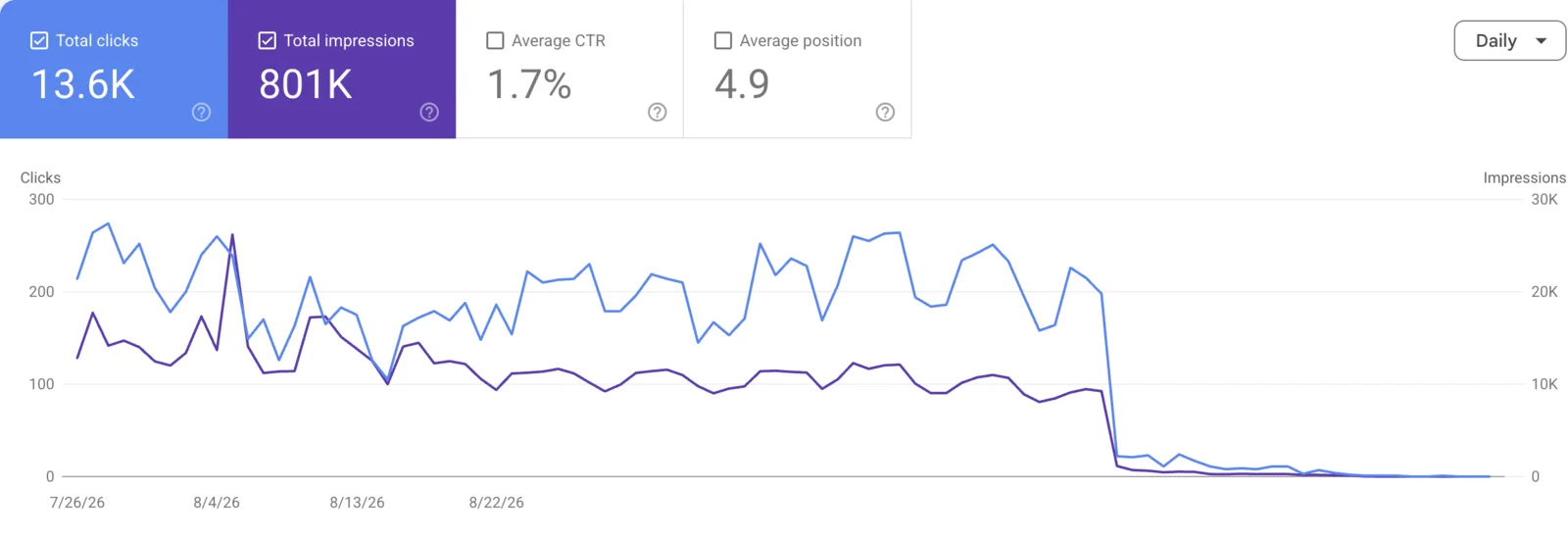
Before the switch, this site was getting about 200 visits a day from Google, roughly 6,000 a month, at an average position of 4.9. Those were people searching for what the business does and finding it near the top of the results. After the switch, they find nothing.
Look at how sharp that drop is. Traffic doesn’t fade over a few weeks; it stops within a day or two. It is not seasonality, and it is not a competitor. A drop that fast usually means the new site is telling Google to stay away, through a noindex setting, a robots.txt block, or canonical tags pointing somewhere else. Missing redirects do damage too, but they tend to bleed traffic more slowly as old URLs drop out of the index.
What a pixel-for-pixel conversion still has to carry over
Matching the design is the visible half of a migration. These are the parts Google sees, and none of them come across just because the pages look the same:
- Every URL, or a redirect for it. Craft and WordPress build URLs differently. If
/news/our-new-productbecomes/2026/09/our-new-product/, the old address needs a permanent (301) redirect, page by page. Without one, every link Google has, and every link from other sites, lands on a 404. - Page titles and meta descriptions. On Craft these often live in an SEO plugin such as SEOmatic, not in the page content. A conversion that copies what’s on screen can leave every page titled with just the site name.
- Indexing settings. WordPress has a “Discourage search engines from indexing this site” box under Settings → Reading. Developers tick it on staging builds so unfinished sites stay out of Google. If it’s still ticked at launch, the live site asks Google to drop it.
- Canonical tags. Each page should name its own production URL as canonical. Canonicals left pointing at a staging host tell Google the real page is somewhere it can’t reach.
- The XML sitemap. The new platform generates a new sitemap at a new address. Search Console needs the new one, and the old one shouldn’t return an error.
- Structured data. Business details, breadcrumbs, articles, and FAQs often come from the old platform’s SEO plugin. If they don’t come across, rich results in Google go with them.
- Search Console and analytics. Verification files and tracking tags have to move to the new site, or you lose the reports that would have shown you the problem.
Every item on that list is routine work. Skipping them isn’t a platform problem; it’s a care problem. The same fundamentals belong on every site, every month, not only on launch day.
Why Search Console gets dropped in a switch
Agencies often treat Search Console as “SEO’s problem” while developers move hosting, DNS, and deploys. On the way out, a few things go wrong:
- The old agency was the only verified owner. When they leave, nobody on your side can open the property.
- A new property is created for the wrong URL (http vs https, www vs non-www, or a staging host).
robots.txtor a site-widenoindexships with the new deploy and nobody checks Coverage / Pages.- The XML sitemap URL changes or stops updating, and Search Console still points at the old one.
- A DNS or CDN cutover breaks verification methods (HTML file or DNS TXT) the property relied on.
- Analytics and ads tags move, but Search Console users and ownership never transfer.
None of that requires malice. It is what happens when custody of search tooling is not on the handoff list.
Who should own Search Console
Your organization should own the property. Agencies and developers get user access.
In practice:
- Verify the property with a method your company controls (Google account on your domain, DNS TXT at your registrar, or an HTML file you can redeploy).
- Add your new agency or developer as a full user, not as the sole owner.
- Remove people who no longer work on the site once the handoff is done.
- Keep at least two owners inside your company so one departure cannot lock you out.
If your only owner is the outgoing agency, fix that before you cut them off.
Website migration SEO checklist (before and after go-live)
This is the website migration SEO checklist we run when DNS and hosting move with a developer or agency switch.
Before you switch
- Confirm your company is a verified Owner on the live Search Console property (exact production URL).
- Export a baseline: Performance (clicks, impressions, CTR, position) for the last 3–6 months, plus a Pages / Coverage snapshot.
- List every Search Console user and owner. Decide who stays.
- Note the current sitemap URL(s) submitted in Search Console.
- If the platform or URL structure changes, export every live URL (the old sitemap is a good start) and map each one to its new address. Test the redirects on staging before launch.
- Record each key page’s title tag and meta description, so you can compare them on the new site.
- Confirm Google Analytics (or your analytics) and any tag manager containers are in accounts you control.
Day of DNS / hosting cutover
- Keep the same canonical host (https, www or not) unless the project includes a planned migration with redirects.
- After DNS settles, open the live homepage and a few key URLs. Confirm they are indexable (no accidental staging banner, basic auth, or
noindex). - Fetch the live
robots.txtand sitemap in a browser. Confirm they match what you expect for production.
First week after cutover
- In Search Console, confirm the property still verifies. Re-verify if DNS or files moved.
- Resubmit the sitemap if the URL changed. Watch for a spike in “Excluded” or “Error” pages.
- Compare Performance to your baseline. A sharp, sustained drop in both clicks and impressions needs same-week attention.
- Spot-check URL Inspection on the homepage and two pages that bring in leads: “URL is on Google” vs blocked / redirected / soft 404.
- Keep the old hosting or rollback path available until Search Console looks stable.
What we do on a Craft CMS takeover
On our Craft handoffs, Search Console sits next to hosting, DNS, licenses, and deploys in step P.03, Take custody properly:
- We make sure your company is an owner, so the previous vendor is never the only one.
- We verify the production property, sitemap, and robots after go-live.
- We watch Performance for a cliff in the first weeks, not months later.
- If something is blocked or mis-hosted, we treat it as urgent, same as a stalled Craft queue or a broken form.
The full Craft handoff path is on our Craft CMS takeover page.
Still wondering?
Do we need a new Search Console property when we change developers?
Usually no. Keep the existing property for the same production URL and change who has access. Create a new property only when the canonical URL really changes (for example http to https with a migration plan), and then connect old and new properly.
Our old agency won't give us Search Console. Now what?
You can often re-verify with DNS or an HTML file on the live site, then remove their access. Domains and DNS you control are the leverage. Start that before the relationship goes cold.
How do we add a user to Google Search Console without giving up ownership?
Keep your company as Owner. In Search Console Settings → Users and permissions, add the agency or developer as a full user (or restricted, if that is enough). Do not transfer sole ownership to them. Keep at least two owners inside your company, and remove people after the handoff is done.
Clicks fell off a cliff after we switched. What should we check first?
URL Inspection on key pages, robots.txt, site-wide noindex (on WordPress, the "Discourage search engines" box under Settings → Reading), accidental staging or password protection, sitemap errors, and whether Search Console is looking at the real production host. Fix indexing first; content tweaks will not help if Google cannot see the site.
Is this only a Craft CMS issue?
No. The example in this guide is a Craft site that moved to WordPress. Redirects, indexing settings, and Search Console ownership belong on every developer, agency, or platform switch.